The Complete Guide to PowerPoint Templates, Plus the 5 Best Paid Professional Options
PowerPoint Presentation TemplatesThe Complete Guide to PowerPoint Templates, Plus the 5 Best Paid Professional Options
Averil Gleason
In 1990, Microsoft released its first official version of PowerPoint. By 1993, the software was grossing $100 million annually [1]. PowerPoint then was nothing like it is now, though. By 1997, custom animations, image maps, and transitions put PowerPoint on a path to eventually grossing $1 billion a year. In recent years, competitors like Apple, Google, and Prezi have created their own presentation software and competitors, but these Microsoft PowerPoint remains the O.G. of the corporate presentation and pitch deck world.
That means, however, that your coworkers, clients, investors, and bosses have probably seen all of the basic PowerPoint templates. When you're making your next presentation or deck, you'll want to stand out. In this article, we’re going to cover how to use PowerPoint templates (even on other slide apps, not just PowerPoint) and help you figure out what professional-quality templates are right for you and how to use them.
The Complete Guide to PowerPoint Templates
How do I import a template into PowerPoint?
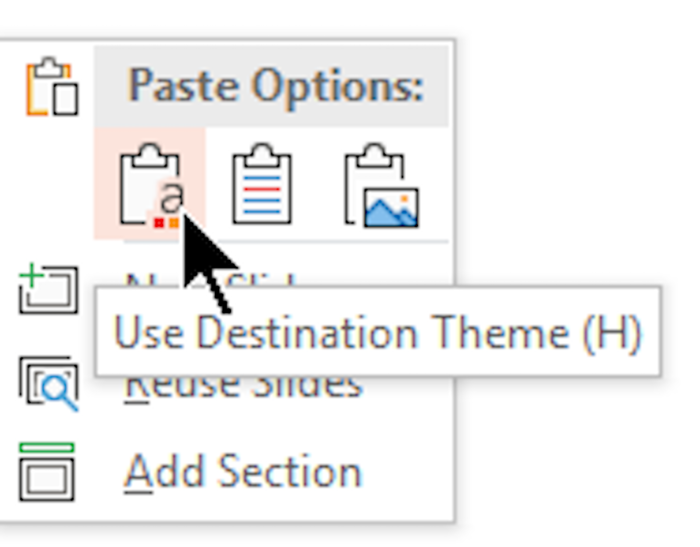
Begin by going to the template folder you’ve created on your desktop (this is where you store all the templates you’ve downloaded from sites like Beautiful.ai or Envato Elements). Open the file containing the existing slides and select the slides you want. Copy them by using Ctrl+C (⌘+C for Mac users). Then you’ll switch to a new PowerPoint file and right click the thumbnail pane that signifies destination themes. All the copied slides you’ve chosen will be immediately inserted into your new presentation, and voila! You can begin working on your unique PowerPoint.
How do I edit a PowerPoint template?
There are tons of small and big alterations you can make to the PowerPoint templates and themes that are already provided.
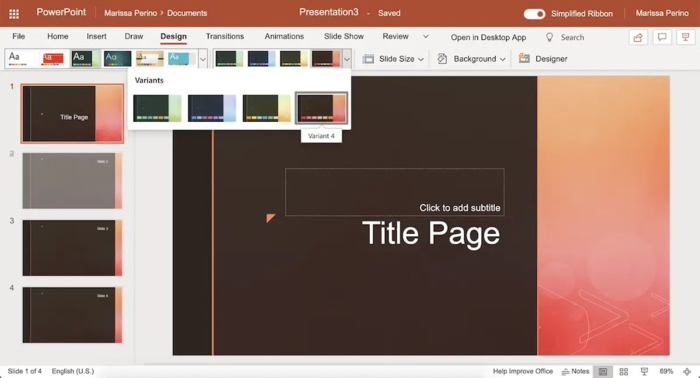
Let’s start at the top, shall we? Click to create a blank presentation (don’t worry, you can choose your template soon). Once you’ve chosen your template of your choice (there are nine standard layouts, or import your paid theme), you can continue customizing the presentation [3].
The customizing doesn’t stop there. You now have the ability to edit individual font styles, backgrounds that match the template, and color scheme.
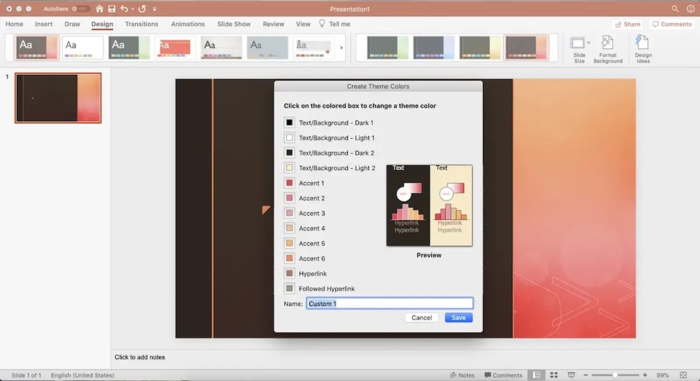
You can customize your color scheme even further. From the Design box, down click to Variants and select Colors. From there you can click Customize Colors and pick the exact color scheme you want. Then, you can save this customized color scheme and use it again and again.
Will PowerPoint templates work with Google Slides?
Yes — and it’s super simple. Start by creating a new Google Slides document, clicking File > Import Slides > Upload. From there, you drag and drop your template of choice from PowerPoint to Google Slides.
You can also convert a PowerPoint with a custom template to Google Slides quite easily. Drag the PowerPoint file from your desktop to drive.google.com, or click New and then File Upload to upload the file. Once it’s in Google Drive, clock on the presentation to open it with Google Slides.
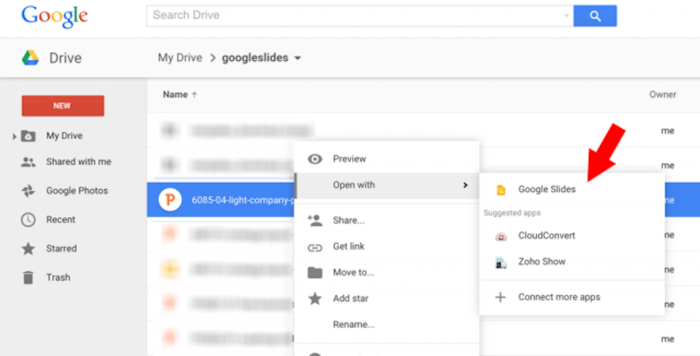
It may take a minute for the presentation to convert, but once it’s converted, you’ll have free rein to edit and present the presentation from Google Slides, without worrying if your templates and themes are transferred [4].
Will PowerPoint templates work with Apple Keynote?
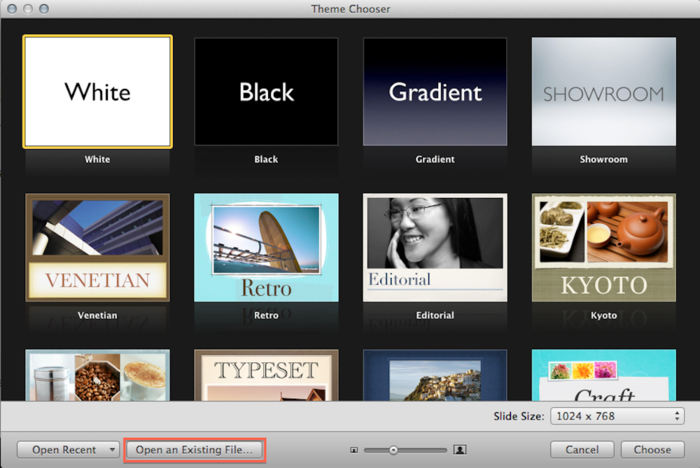
Mac users needn’t worry whether PowerPoint templates will transfer to Keynote. They will, and you can install a custom theme within minutes. With the templates downloaded to your desktop, what you’ll need to do is double click the Theme File on Keynote and then click Add to Theme Chooser [5]. Find already downloaded and used themes at the bottom of the Keynote screen.
Should I use a free PowerPoint template or pay for one?
There are lots of free PowerPoint themes out there. But ultimately, you get what you pay for. With paid, professional PowerPoint templates you can expect better design quality, more versatility, and helpful support if you want to do something but can't quite figure out how. Free templates certainly have their place — but if you're trying to wow someone or make a good impression, the extra benefits you get from paid PowerPoint templates will be worthwhile.
The 5 Best Places to Get Paid, Professional PowerPoint Templates
Beautiful.ai: best for modern PowerPoint templates

Beautiful.ai, $12/month for Pro
Beautiful.ai is all about helping you meet today's design standards — and making it easy to do so. For $12 per month (or $38 per month if you want to share your templates with colleagues), you can pick from 65 templates that have the design "looks" you see today in the top apps and websites. You'll also get access to millions of photos, graphics, icons, and the ability to easily import it all to PowerPoint. Beautiful.ai also offers priority support for users new to template creation. We love Beautiful.ai because of their expert deck designs and beautiful templates that will make you feel like a graphic designer, without all the work.
SlideModel: best for PowerPoint templates tailored to your type of business
SlideModel, $59/three months
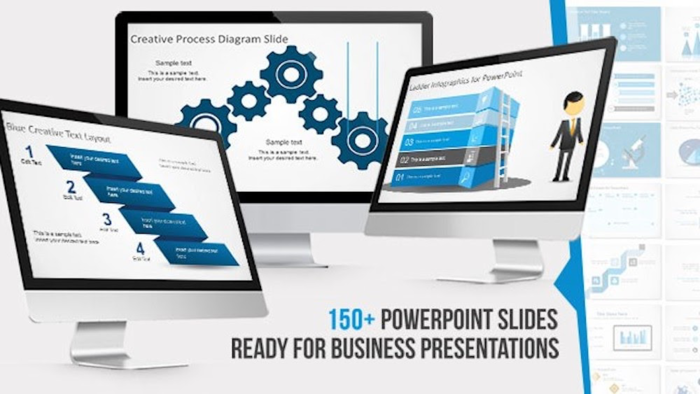
With SlideModel, you can choose from 30,000 templates and download ready-to-use slides for your next presentation — odds are several of their templates are designed specifically for your business and current use case. All templates are fully editable in PowerPoint, Google Slides, Keynote, and OpenOffice. SlideModel also offers a personal concierge for creators who need help deciding what template to use, which color palette to pick, or just assistance for any miscellaneous (PowerPoint-related) questions.
PresenterMedia: best for animated PowerPoint templates
PresenterMedia, $39/month
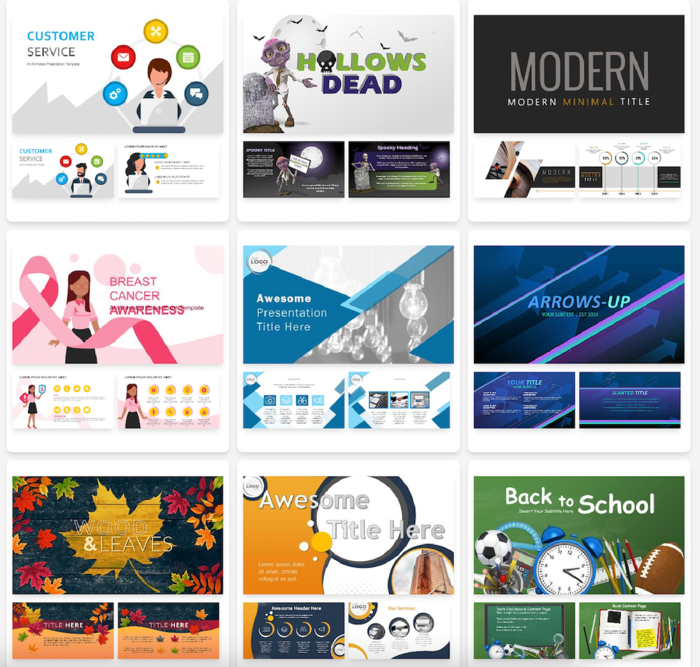
PresenterMedia was created by graphic designers who know sometimes, occasionally, maybe once in a while... PowerPoint presentations can get boring. PresenterMedia focuses on animations, interesting graphics, nontraditional layouts, and unique video backgrounds that transfer to PowerPoint, Google Slides, and Apple Keynote. And if you’re just looking to add a personal touch to your PowerPoints, PresenterMedia encourages you to create your own graphics to make your presentations pop in the boardroom.
Envato Elements: best for unlimited PowerPoint templates and creative assets
Envato Elements, $16.50/month
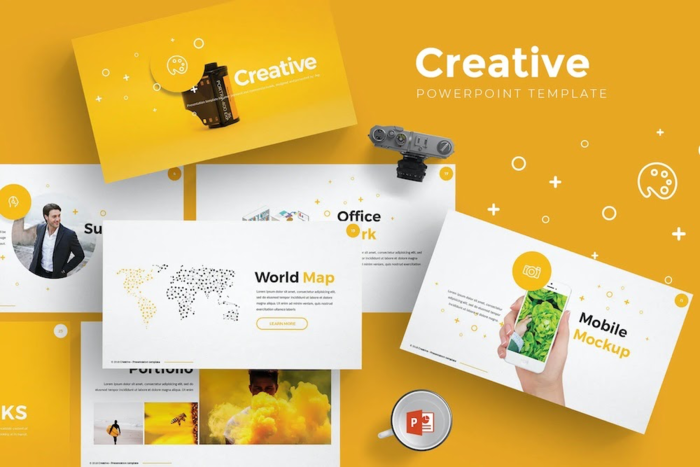
PowerPoint templates are great, but you may have design needs that extend beyond those templates. With a subscription to Envato Elements you'll get tens of thousands of PowerPoint, Keynote, and Slides templates — and also unlimited downloads of stock photos, music tracks, graphics, video templates, and more. You can use those elements in your PowerPoint presentations or elsewhere.
Smile Templates: best for a giant selection of PowerPoint templates
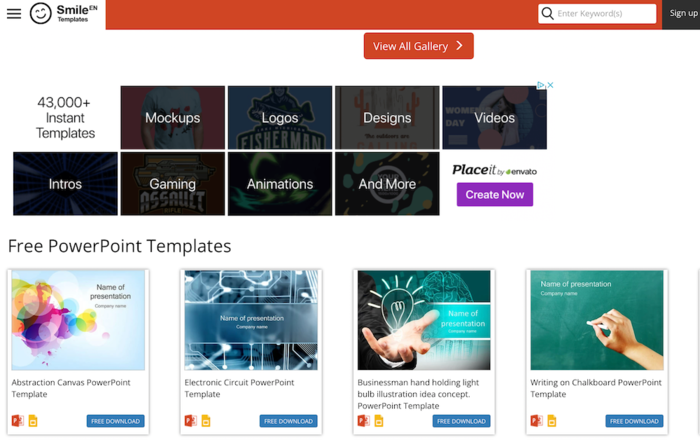
Smile Templates, $10/month for five templates
PowerPoint presentations aren’t just for fancy-shmancy board meetings or incredibly dull high school projects. Well, they can be. But Smile Templates is changing that. With more than 50 unique categories of presentation templates (100,000 templates total), the work you create will go above and beyond the classroom or boardroom.
External references
